TL;DR: You can now capture original project timelines into reportable system fields rather than visual-only snapshots. Track schedule changes, monitor delay warnings, and report on performance across Gantt Charts, Tables, Dashboards, and Analytics.
Hi Community! 👋
We’re excited to announce a major update to your project tracking: Baseline Tracking is now live! 🚀
What is Baseline Tracking?
A baseline represents your original project timeline, serving as a fixed point of comparison to see if your work is on track, ahead of schedule, or delayed.
Previously, baseline data was tied to visual-only "snapshots" locked within the Gantt chart. With this update, you can set a single baseline for a folder, project, or task, and turn that timeline into reportable, platform-wide system fields. This brings your original plan directly into the rest of Wrike to help you monitor true project health! 💯
What Baseline Tracking Includes 👇
When you record a baseline, Wrike automatically generates specific system fields for you:
- Baseline Start Date & Due Date: The original planned dates at the time the baseline was recorded.
- Baseline Duration: The original planned length of the item based on your baseline dates.
- Baseline Due Variance: An automatic formula field created for your convenience that instantly displays the difference between your current due date and your original plan.
How to Use Baseline Tracking
📍 Setting Your Baseline
You can set a baseline directly from either Table view or Gantt Chart view:
- Navigate to your specific folder, project, or space.
- Click the three-dot menu in the view toolbar and select Set baseline.
- In the pop-up window, configure your settings:
- Choose the Source: Select From current state (uses your current task and project dates) or From history (records the baseline based on past states).
- Choose the Scope: Select Current item and all its subitems to set or reset a baseline, or select Only items without a baseline if you've added new work to a project and only want to benchmark the new items without altering your original plan.
Click Set baseline to confirm.

🎨 Visualizing Actual Dates vs. Baseline in Gantt Chart
We’ve upgraded the Gantt Chart view to help you spot timeline shifts at a glance:
Baseline Layer: Click the toolbar's three-dot menu and toggle on Baseline to display a dark blue line beneath your task bars, marking your original planned dates.

Configure Delay Warnings: When tasks slip past their baseline, their bars turn red. You can customize this threshold by clicking the three-dot menu and selecting Configure delay warnings. Set it to highlight any delay (starting at 1 day) or only larger shifts (like 10 days or more).

📊 Using Baseline Fields Across Views and Dashboards
Because baseline data is no longer restricted to the Gantt chart, these fields behave like account-wide custom fields and can be displayed, filtered, and reported on everywhere:
- Table View: Show or hide your baseline fields at any time directly from the Fields menu.
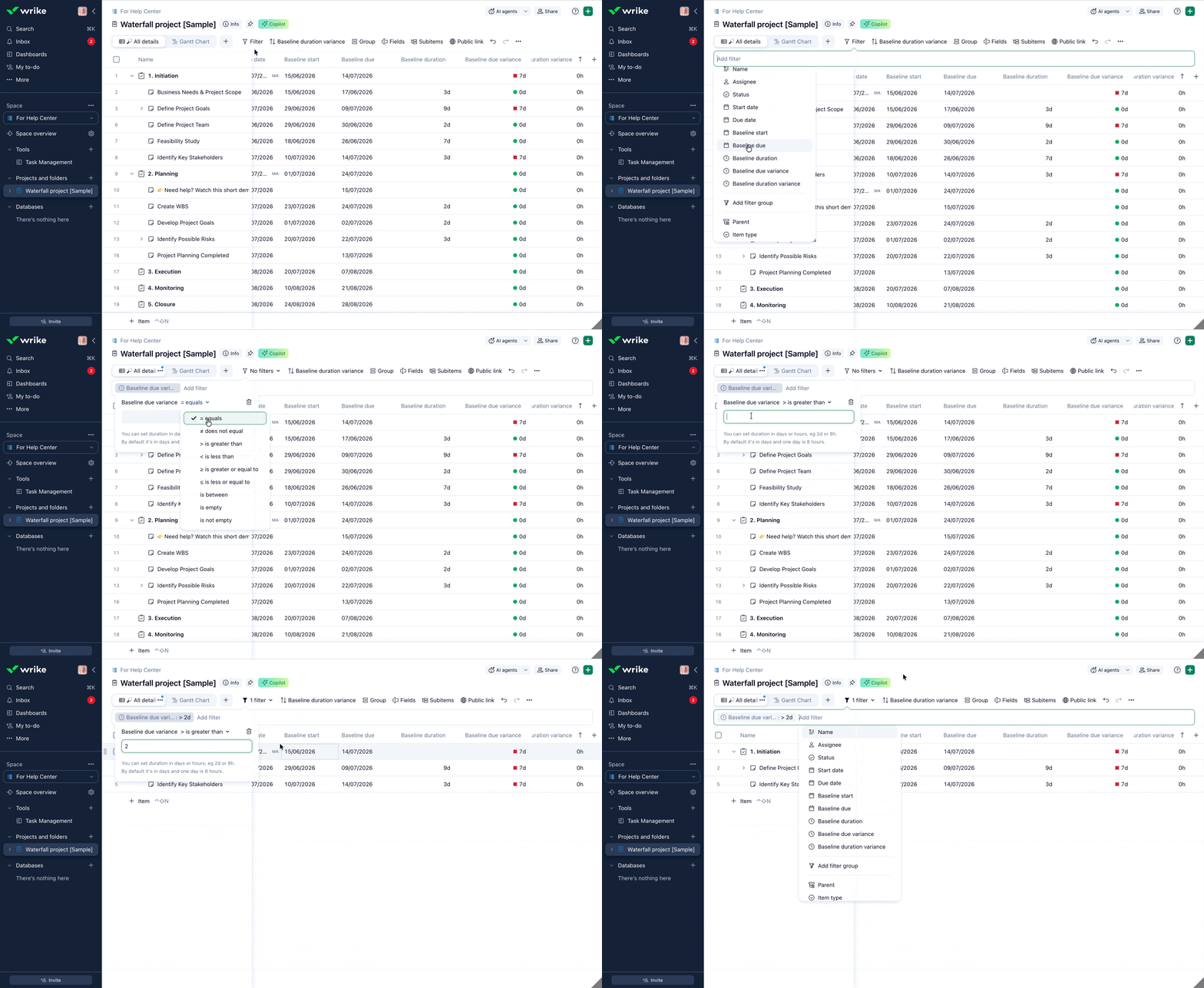
Filters: Available in any view that supports filtering. Easily narrow down your tasks based on original planned dates, duration, or variance.
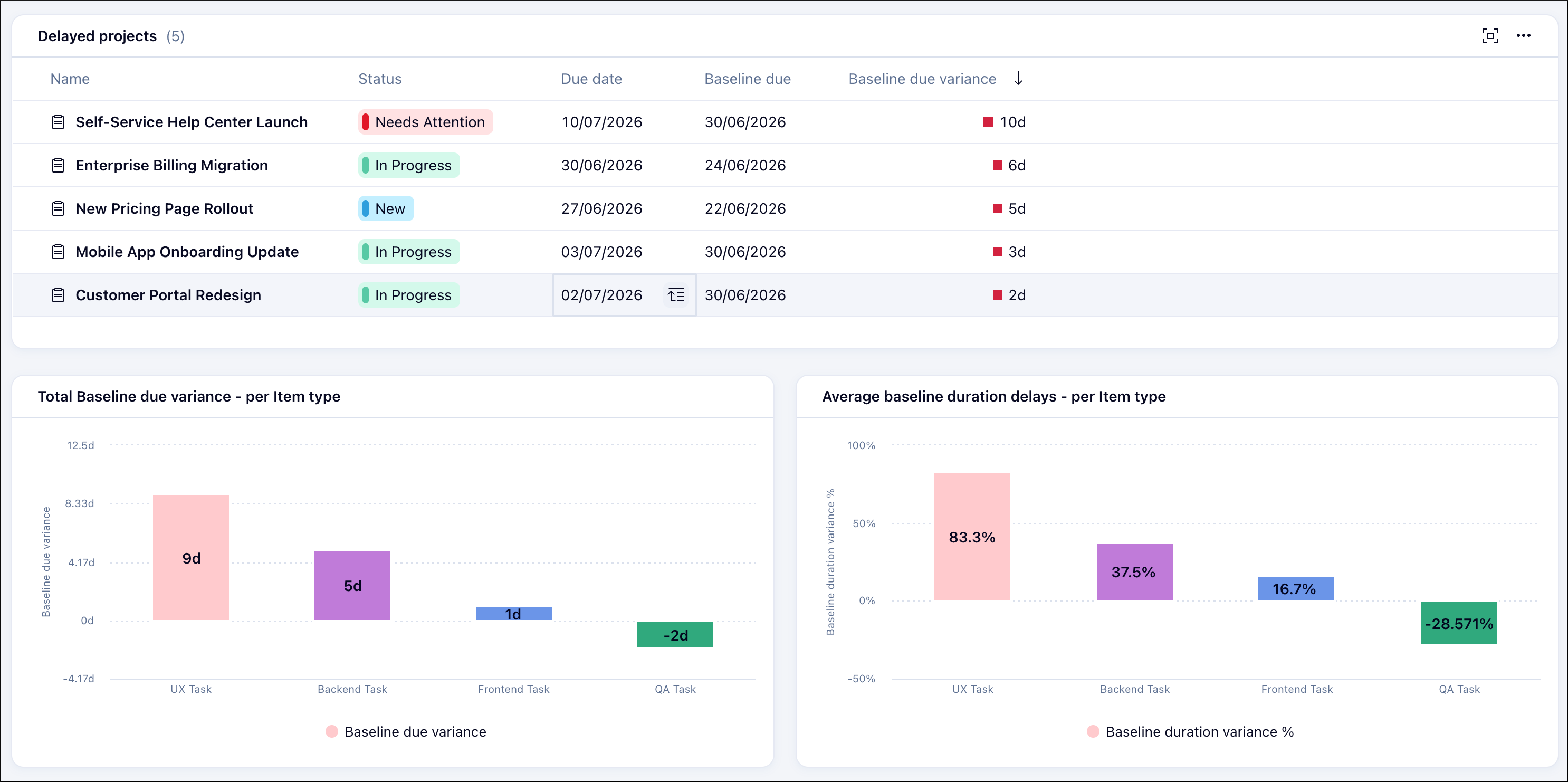
Dashboards: Build custom Table widgets to track raw baseline values or create Chart widgets to visualize critical KPI metrics like due date variance.
🔐 Managing Permissions (For Account Owners & Admins)
To ensure secure data management, users must have the baseline permission enabled in both their User Type and their Access Role to record or overwrite a baseline. By default, this is turned on for Admins, Regular Users, and Full/Editor roles.
To manage these settings:
- 1. Go to Settings and select User Types.
- 2. Under Categories, select Folders and Projects and toggle Set baseline on or off.
3. Next, click Access roles, select folders and projects, and check or uncheck the Set baseline boxes.
📝 Good to Know & Limitations
- 1. Baselines vs. Snapshots: Think of your baseline as your official plan and snapshots as temporary checkpoints. You can still use the Public sharing icon to create or view past snapshots to see a grayed-out look at intermediate project stages, allowing you to visually compare current dates vs. your baseline vs. a snapshot simultaneously.
- 2. Custom Formulas: Owners and Admins can edit baseline field settings. For example, you can create your own custom formula field to track Baseline duration variance using: [Duration] - [Baseline duration].
3. Performance Note: There is no limit to the number of items you can include in a baseline recording, though processing very large projects may take a few moments.
✅ Availability
This feature is available for users on Business plans and above.
Want to dive deeper into configuring your views or settings? Check out our Help Center Article for more step-by-step details.
We’d love to hear your thoughts! How will your team be using Baseline Tracking to keep your workflows on track? Drop your questions or use cases below! 👇