Hello Wrike Community 👋
We're thrilled to announce that if you are on a Business or higher plan you can already start testing our brand-new Custom fields for users feature 👥 in Wrike Labs 🔬This option allows you to create special user fields and apply their values to specific users in your account. You can use this information to quickly find the right assignees for your tasks!
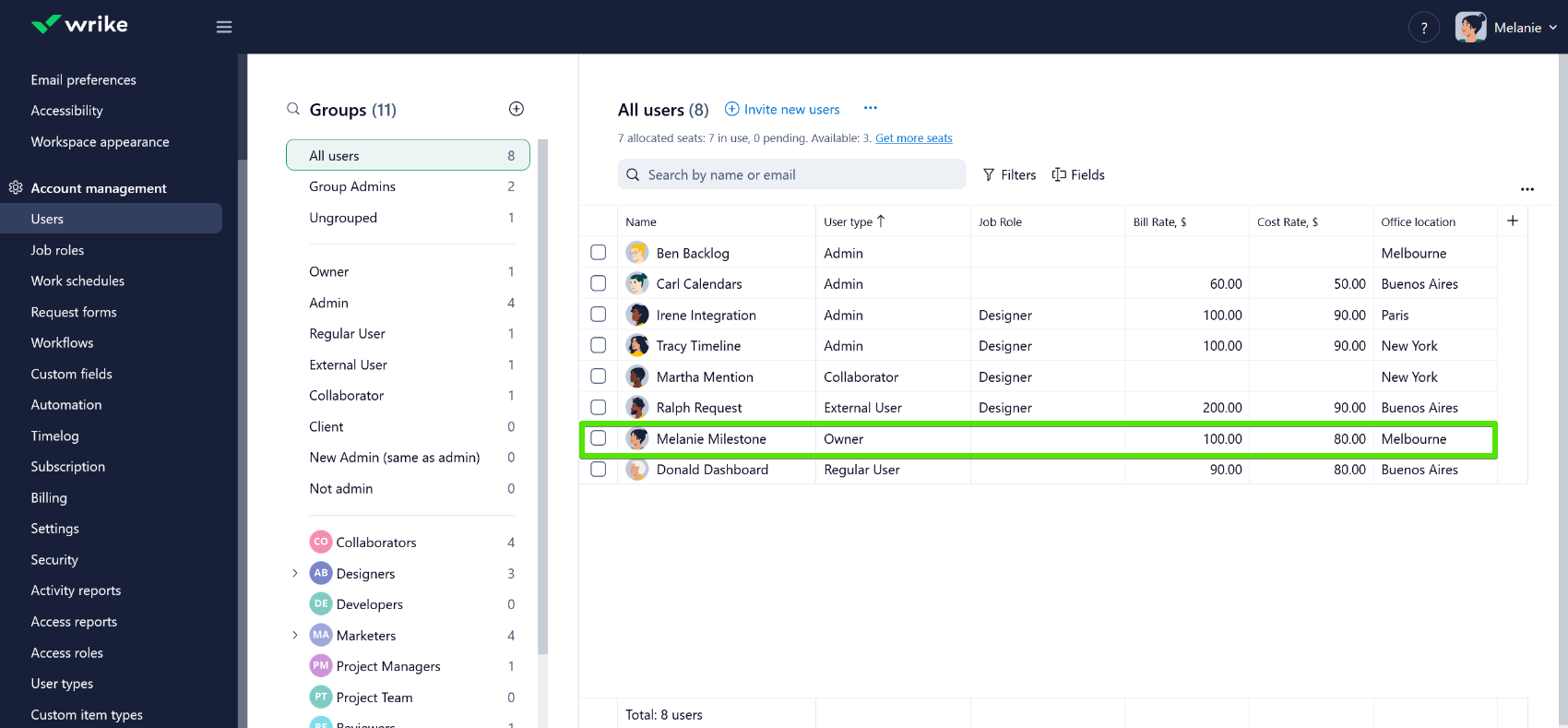
For example, if you have an On-Site Team with employees located in different cities, you can specify their location per user so that when you need to assign a task, you will be able to pick the employees who are based in the relevant office.
You can easily turn the values of these custom fields into task requirements. By doing so, Wrike will suggest the best assignee based on the data added to their user fields (and availability) in the assignee picker. More on this below 👇
📍Note: this feature is subject to change and its functionality and availability - regarding plans and users - may be modified in the future.
Here’s all you need to know about Custom fields for users!
Managing Custom Fields For Users 📌
You can create custom fields for users within the Users tab under Account Management. Account admins have the ability to create and edit these fields.
To do so, click on the Fields section, then + Custom field - you’ll be able to add a new User custom field, choose the field name and type as well as use it as an assignee requirement.
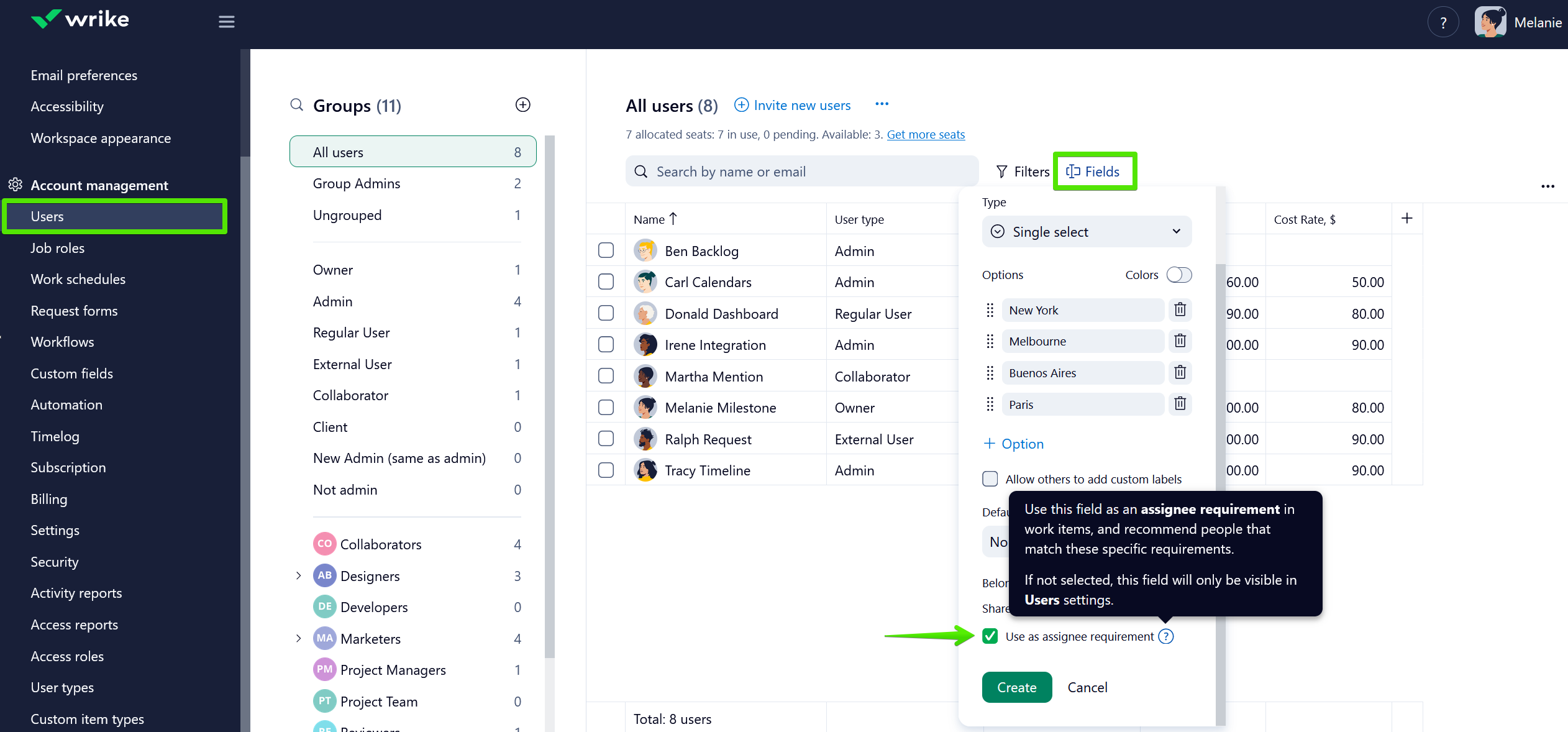
You may enable the Use as assignee requirement option in the custom field settings and it will help you identify the most suitable assignee for a task. If this option is not selected, the fields apply exclusively to User profiles. This means that if you untick this box, the custom field will simply not be applied to spaces, folders, and projects. However, they can still be used in Workload filters and Account Management.
Additionally, you have the flexibility to share these fields with specific individuals or groups who should have access to them. It means that if the field is shared with them, they will be able to view it and use it as a task requirement when assigning work to other users.
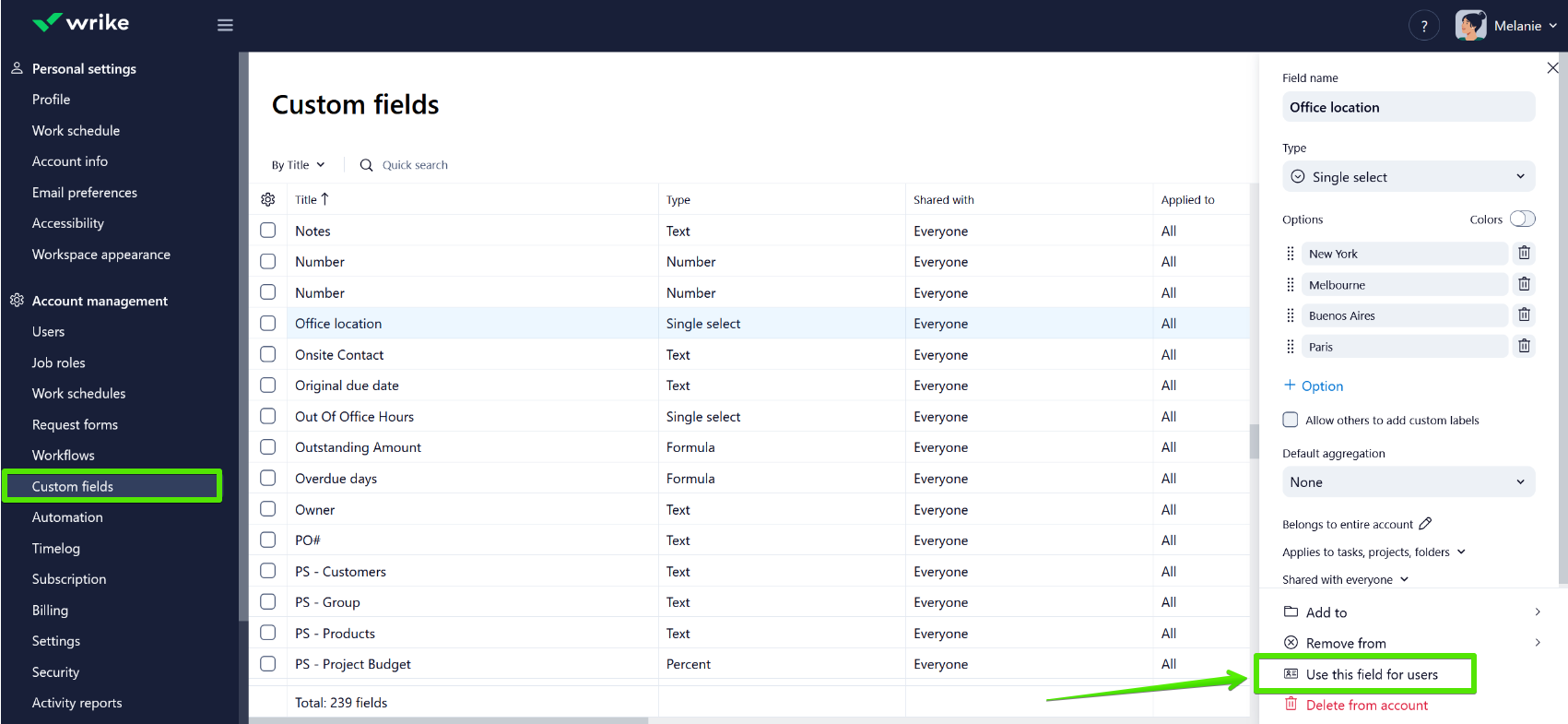
It's also possible to convert existing task fields to be applied to users. To achieve this, access the Custom Fields tab under Account Management and select the option Use this field for users. Please note that the field should belong to the entire account 📌
Please note that mass actions are not yet available, however, our team is working on adding this functionality soon ⏭
The Best Assignee Finder 🔍
Our system will suggest assignees in the Assignee picker in Table and Board views based on matching fields, simplifying the process of finding the best fit.
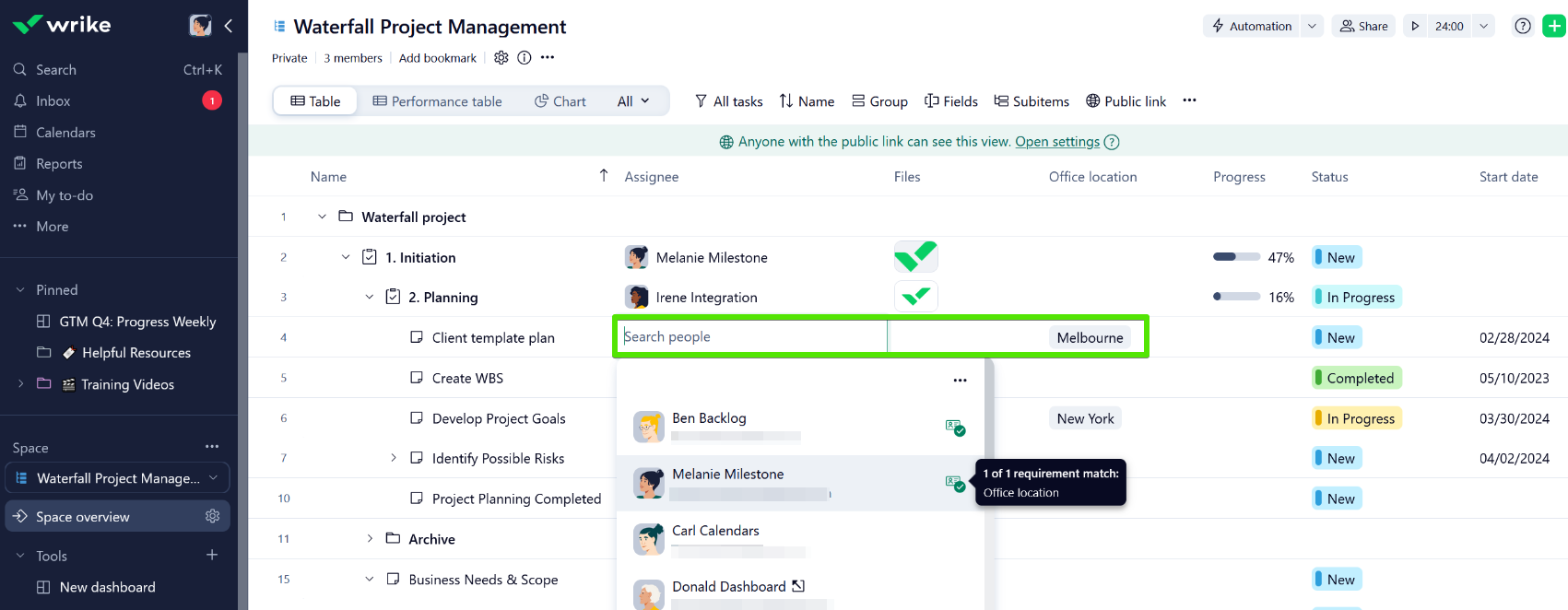
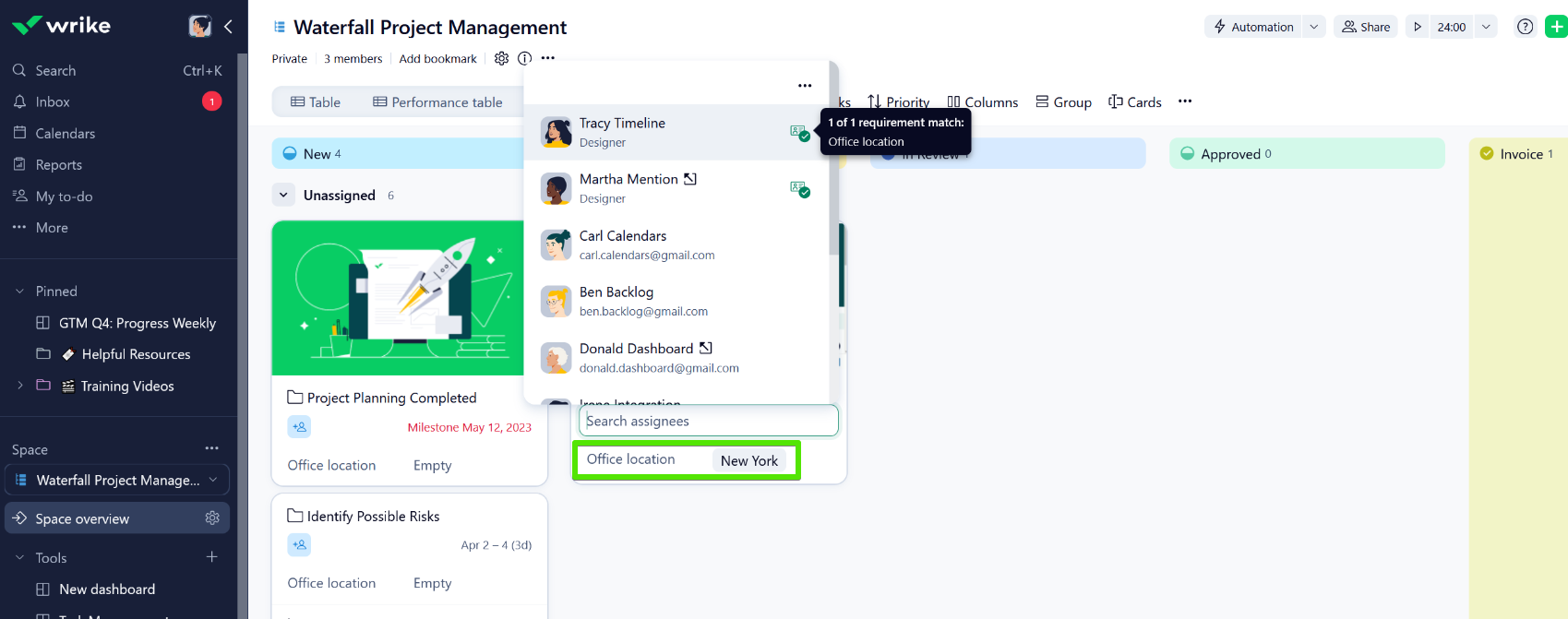
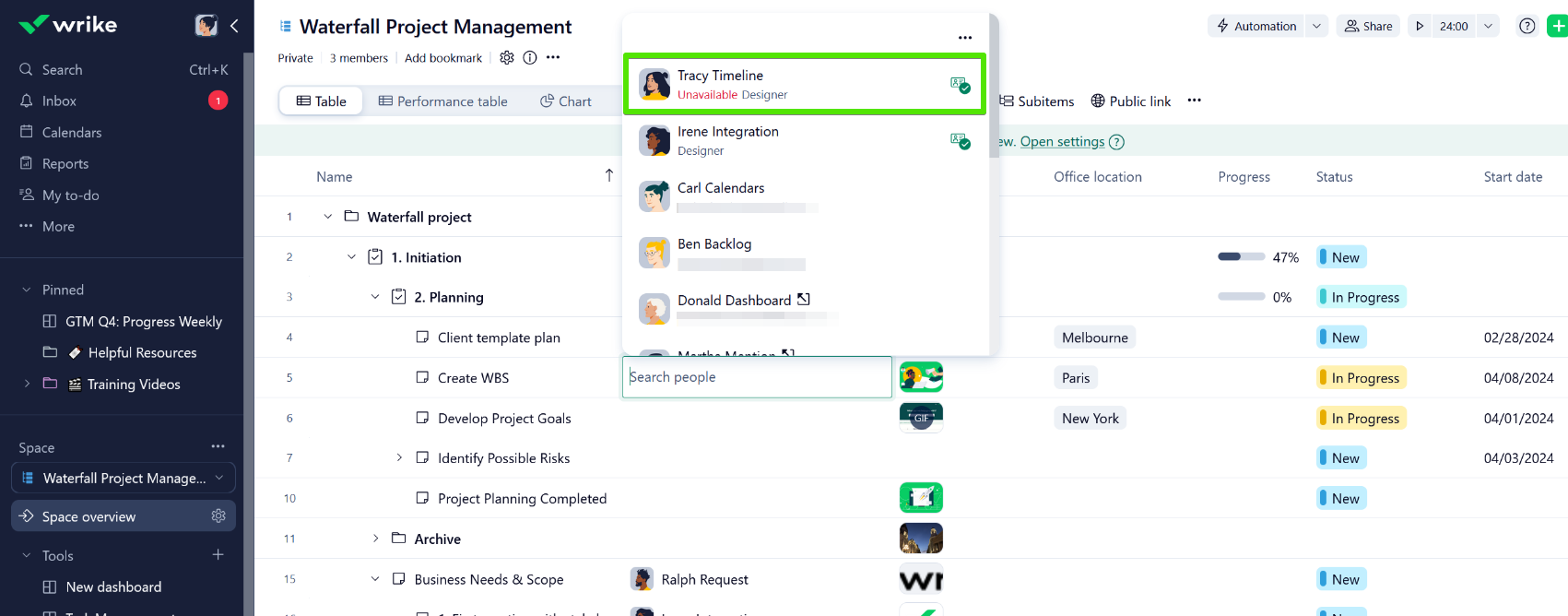
Besides, if a task candidate doesn't have available capacity, they’ll be marked as Unavailable. Availability is calculated based on all active work already assigned to the user and also on the user’s work schedule (PTOs, Daily capacity, and other similar specifics are taken into account).
Please note that these are system suggestions, and you won’t be prevented from assigning work to any users, even the ones who don’t match the requirements.
Assignee Picker Preferences 💡
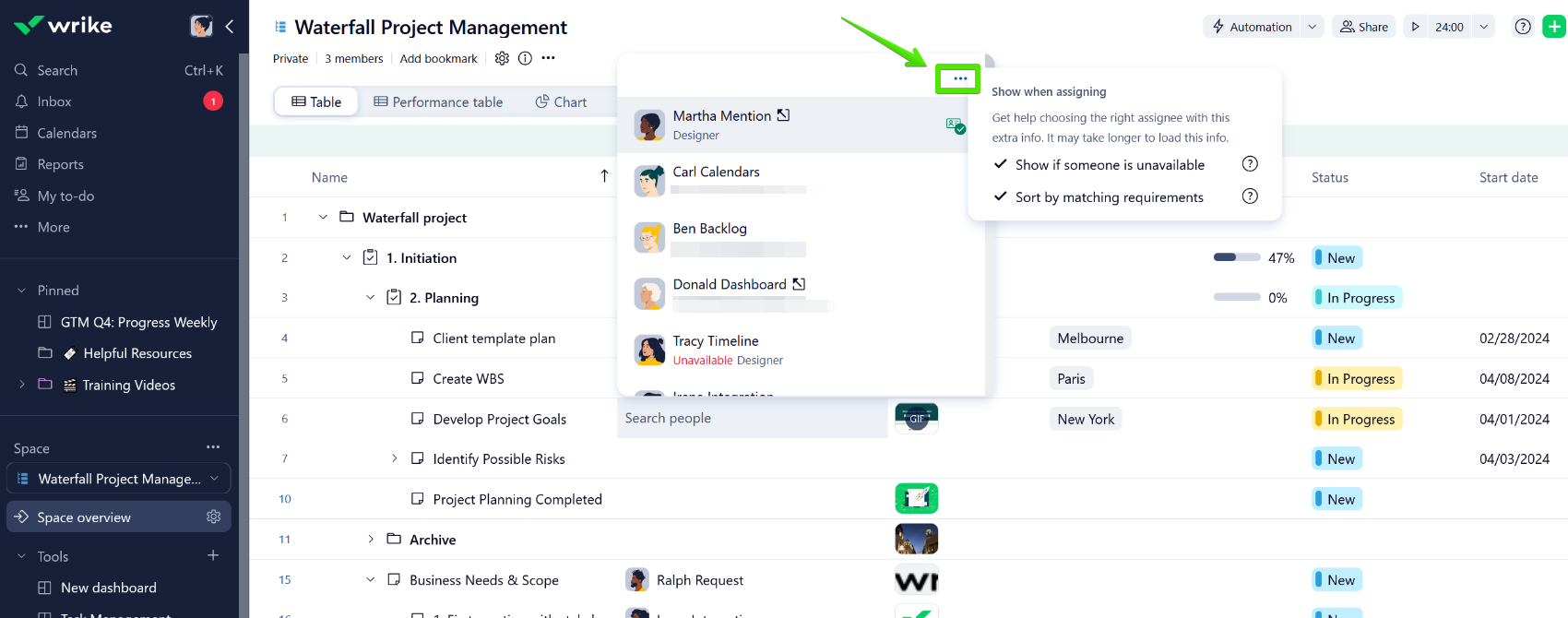
It is also possible to customize your assignee picker: disable the availability display or switch off sorting by matching fields. Your preferences will be saved and applied wherever you pick assignees, without affecting others!
Easily Visualize The Right Assignees In Workload 📊
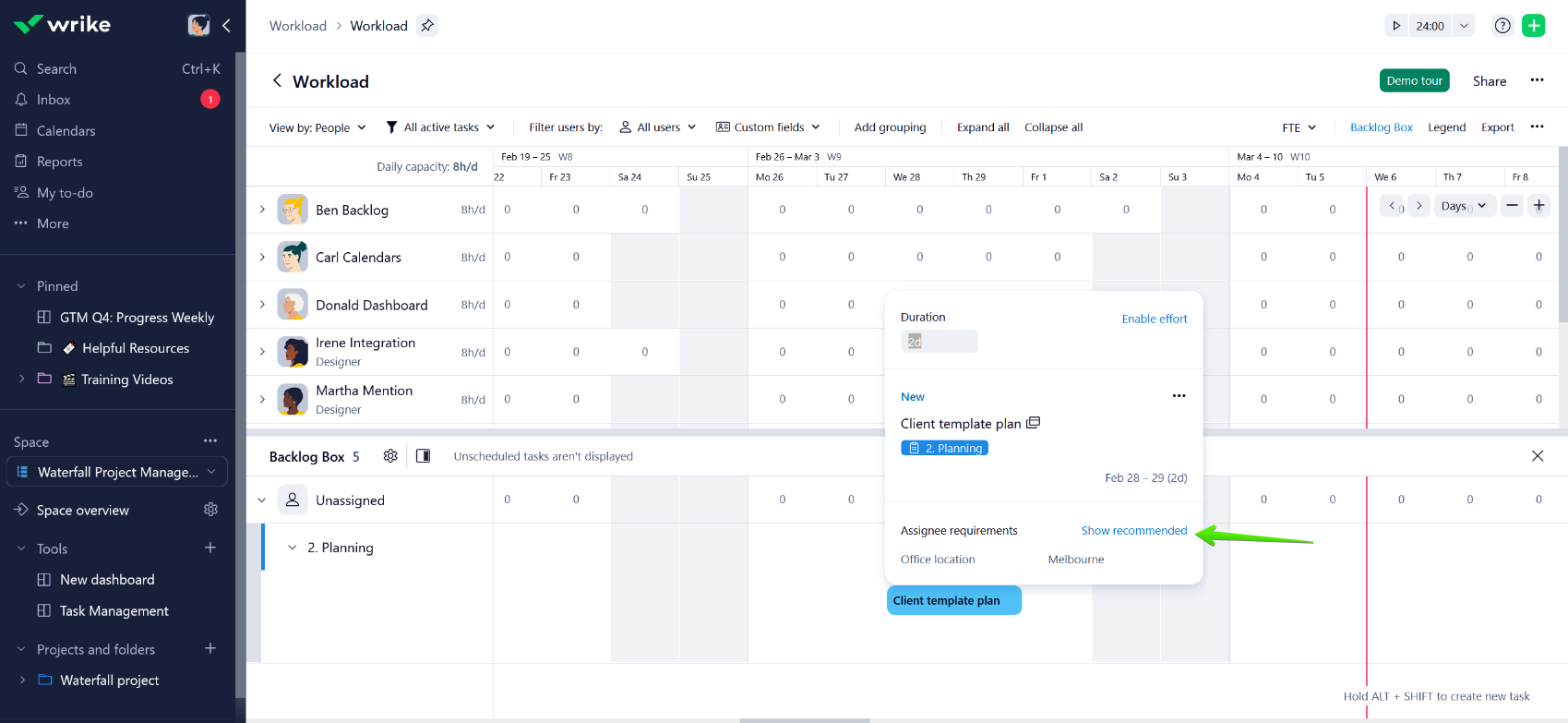
Maximize personnel management with the ability to filter people by their attributes within the Workload. You can find the configured requirements in the task tooltip within Workload charts and filter assignees by the value added to their custom fields for users.
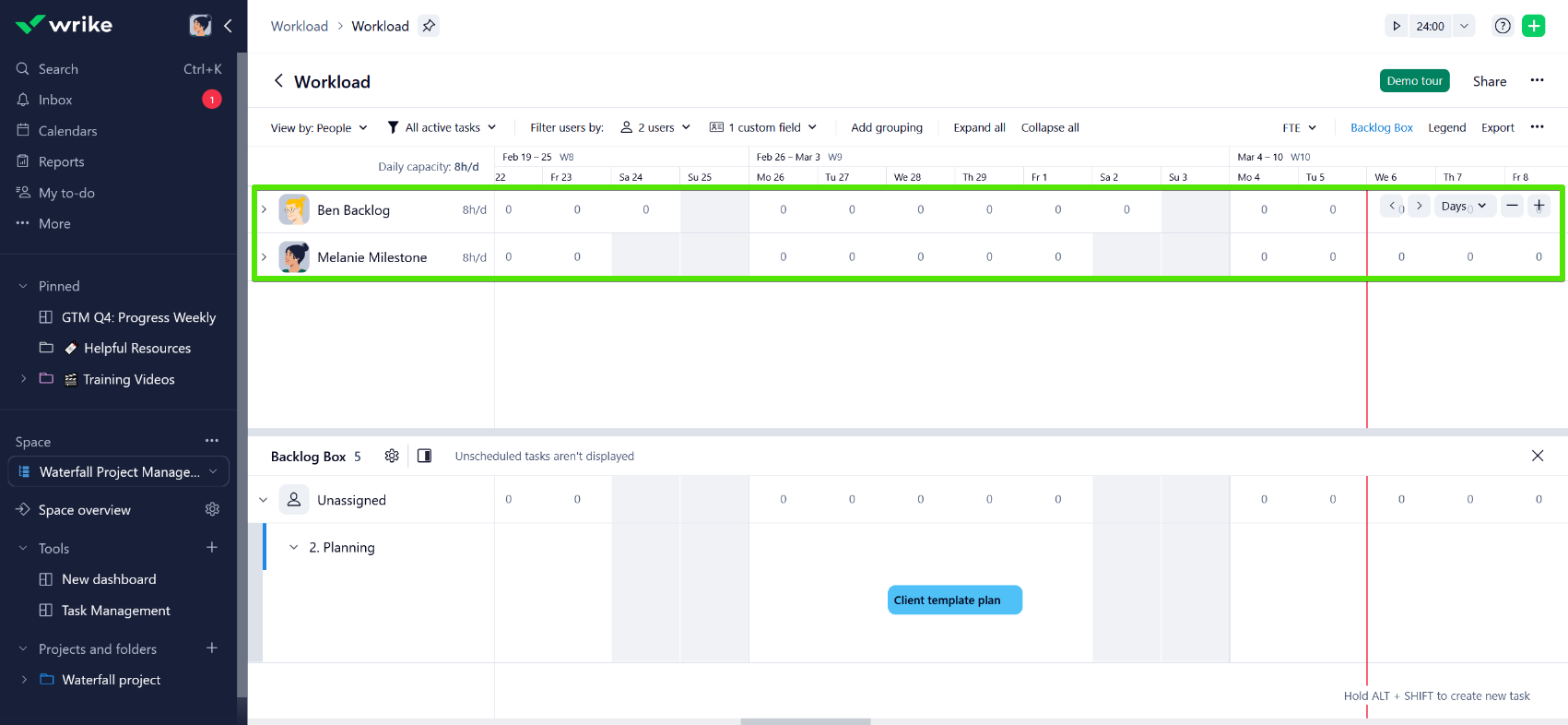
Our team is also working on expanding these capabilities to the Resources view, we will keep you informed about the changes 💪
Lastly, you can also use custom fields for users in request forms and other tools and views where custom fields are supported.
We’re looking forward to your comments! Please share your feedback, insights, and any questions you may have below 👇