Hi everyone 👋
I’m Slava Kogan, Senior Product Manager at Wrike.
I’m excited to introduce a new way to keep your Wrike account organized: a centralized table where you can view and manage all your spaces in one place.
Clean up, power up!
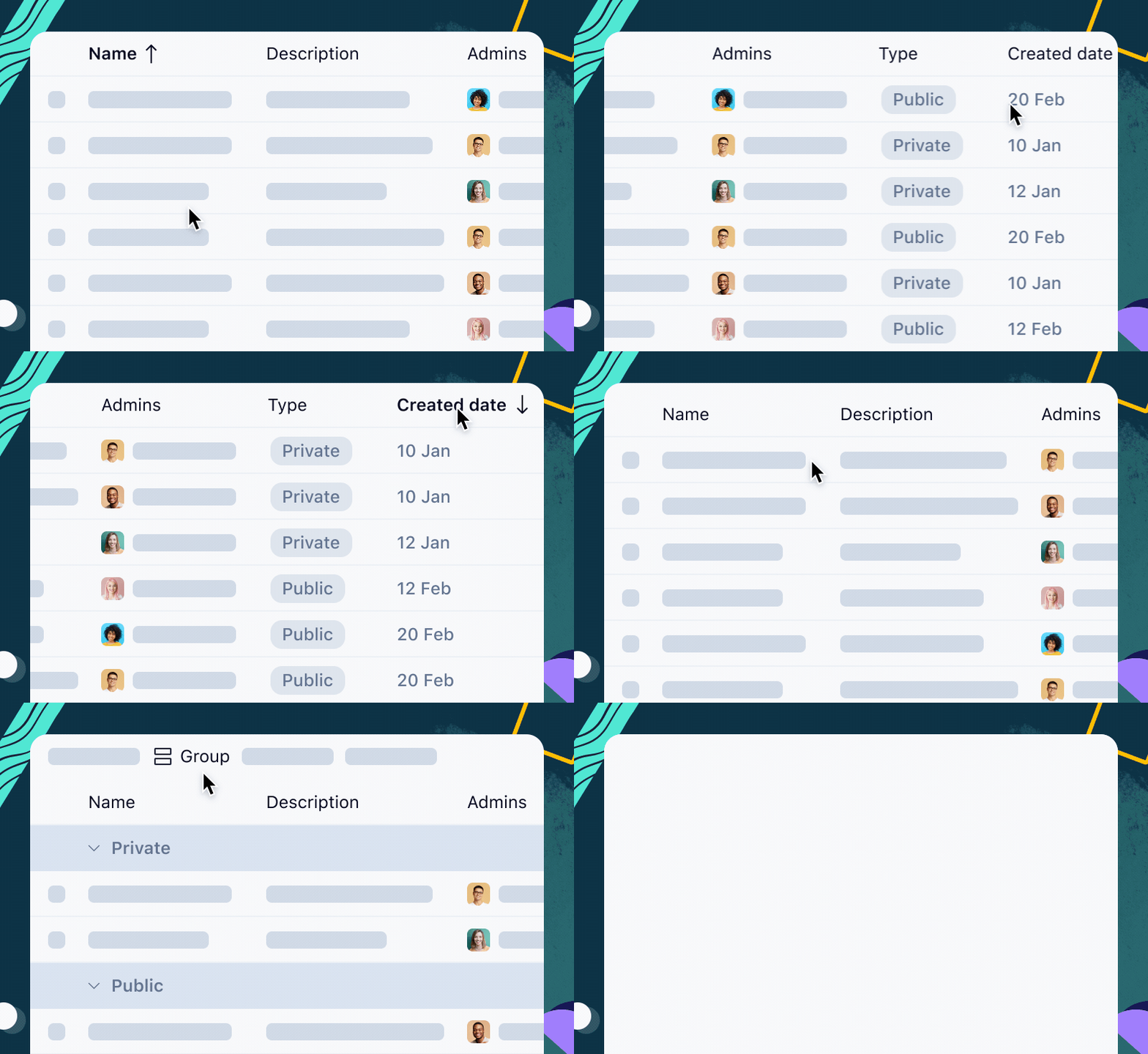
The new configuration table gives you a single view of all spaces in your account—public, private, and (for admins) locked. You can easily review, search, sort, and manage spaces, helping you keep your workspace tidy and up to date. With new permissions, account owners and admins can manage all public spaces, even if they aren’t space admins. This means you can quickly archive, unarchive, or delete unused spaces based on useful data points.
How to access the Centralized Spaces Table
- Click your profile image in the sidebar
- Select Settings from the drop-down menu
- Navigate to Spaces under Account Management
- You’ll see a table listing all spaces created in your account
From this table, you can:
- Search, sort, group, and choose which data fields to display
- Create a new space (if you have permission) by clicking the + Space button
- Open space settings, archive/unarchive, or delete a space based on useful data points like ‘last activity’
Who can use this feature?
- Account admins and regular users with permission to edit spaces can access the table
- Regular users can manage spaces they’ve created or where they are space admins
- Account admins can manage all public spaces, as well as any spaces where they are admins
- On Enterprise and Pinnacle plans, the Manage all public spaces permission can be granted or revoked via user types in Account Settings
Good to know
- Admins can’t manage locked spaces unless they are already added as a space admin
- Archived spaces can’t be edited until unarchived
We hope this update helps you keep your Wrike account clean and organized! 🤝
We’d love to hear your feedback—let us know what you think in the comments below 👇
You can find all details on our Help Center page