Feature Updates
We’re excited to introduce the new Text widget, a fully revamped widget type that replaces the Notepad widget! This intuitive text editor lets you:
- Customize fonts, colors, and formatting.
- Remove the default header for cleaner, more flexible layouts.
- Easily create and edit text right from the Dashboard.
- Add helpful links (and image support is a work in progress!)
All previous Notepad widgets have been automatically converted to this new Text widget—no manual action is required!
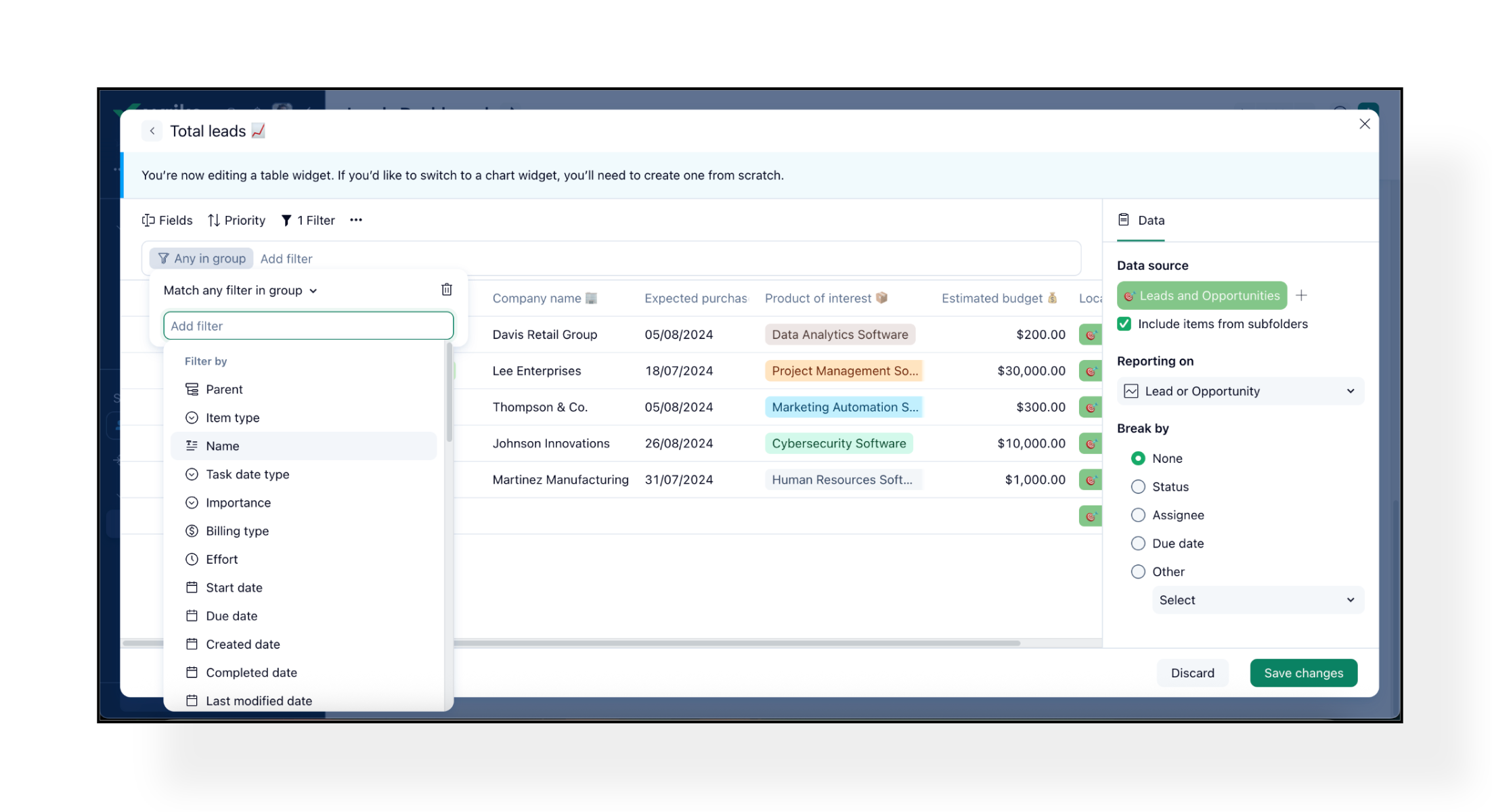
Dashboard tables now support powerful new filtering options—they now include all the capabilities you know from
Table view, bringing consistency and flexibility to your Dashboards.
- Filter groups: Combine filters using AND/OR logic, just like in Table view.
- Parent & Name Filters: Narrow results by item hierarchy or through text-based name searches.
- Separate widget editors: Enjoy focused widget editors for tables and charts, paving the way for faster innovations and easier updates.
Note: New filters in Dashboard are still in Wrike Labs, while the separate editors are generally available. The familiar Drag & Drop functionality now works seamlessly with the updated filters, so you can change statuses and categories on the fly without losing advanced filtering power. Especially useful in operational Dashboards and team workflows.
Custom field descriptions help everyone easily understand the purpose of custom fields, removing guesswork and enhancing transparency in your processes. This is now visible to all users—not just admins!
Here’s where you’ll find them:
- All Tables: Hover over a column to view the field description.
- Item View: Hover over a custom field in the custom fields pane to see its details.
- Custom Field Pickers: See descriptions and metadata when adding or selecting a custom field.
These tooltips go beyond just descriptions—they also display the field type, available options (for single- or multi-select fields), and other key details to help you work more efficiently.
Please note: Custom field info tooltips are not yet supported in some views, like Board view and Calendars.
- Spaces: Centralized Spaces Table 🗂️
Easily review, search, sort, and manage all your spaces from a new, centralized table!
Account owners and admins now have a permission to take action on any public space—even without being space admins—so you can keep your workspace organized by quickly archiving, unarchiving, or deleting spaces as needed.
To find the Centralized Spaces Table, navigate to your profile image in the sidebar, select Settings, then go to Spaces under Account Management.
Who can access and manage spaces:
- All admins and regular users who can edit spaces will see this table.
- Regular users can view and manage spaces they are admins of.
- Admins can manage all public spaces and any spaces they are admins of.
- On Enterprise and Pinnacle accounts, the Manage all public spaces permission can be assigned through User Types in account settings.
📝 Please Note: Admins cannot manage locked spaces unless they are already a space admin. Archived spaces can’t be edited until they are unarchived.
Community News
- Wrike-Up Wednesday: My First Job Flashback! 🔙
This week, we’re taking a stroll down memory lane! 😊 Share the story of your very first job—whether it brought you laughs, lessons, or lifelong skills. From ice cream scooping to track designing, those first gigs shaped who we are today.
Share your story here.