Files attached to tasks or projects via Google Drive can't be used in approvals so here's a workaround I discovered for our copywriting team to be able to take advantage of the approval decisions feature and our workflow automations:
- Attach a Google Doc by going to ‘Add files’ > Google Drive > Choose file or Create new file
- Right click on the Google doc you just attached or created and click ‘copy file permalink’
- Click ‘Add files’ again > select ‘Website link’ > paste the link copied in step 2 (you should now see a second attachment)
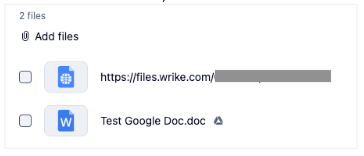
- Change task status to 'Pending Feedback' to trigger the automation and start the approval with the task author
- When prompted, check the box next to the web link item you attached in step 3 and click Done
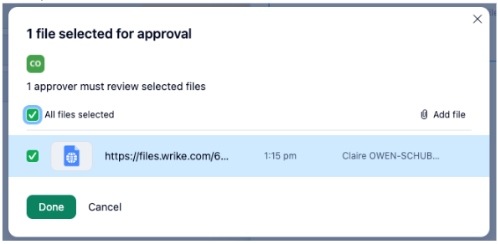
- In approval window, stakeholder(s) will see a button to go to the Google doc where they make comments or suggest edits as they normally would in a Google doc
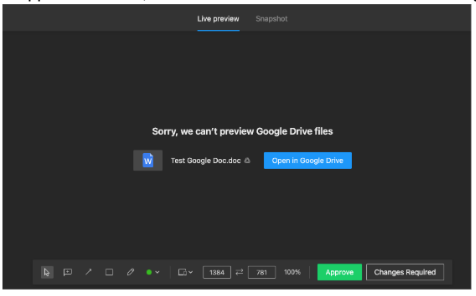
After reviewing and adding comments, if needed, in the Google doc, stakeholder returns to the approval window and clicks either the 'Approve' or 'Changes required' button
This should also work for reviewing Google Slides. It's a few extra manual steps but they're far outweighed by the benefits of being able to automate the stakeholder approval and trigger additional automations based on the approval decision buttons. It also allows us to have a consistent workflow and SOP for design, video, and copywriting approvals.