TL;DR: Set Home for User Groups, Custom Space Templates in Wrike Labs, new Dashboard filters and metrics, plus this week’s Wrike-Up Wednesday—details below.
Feature Updates
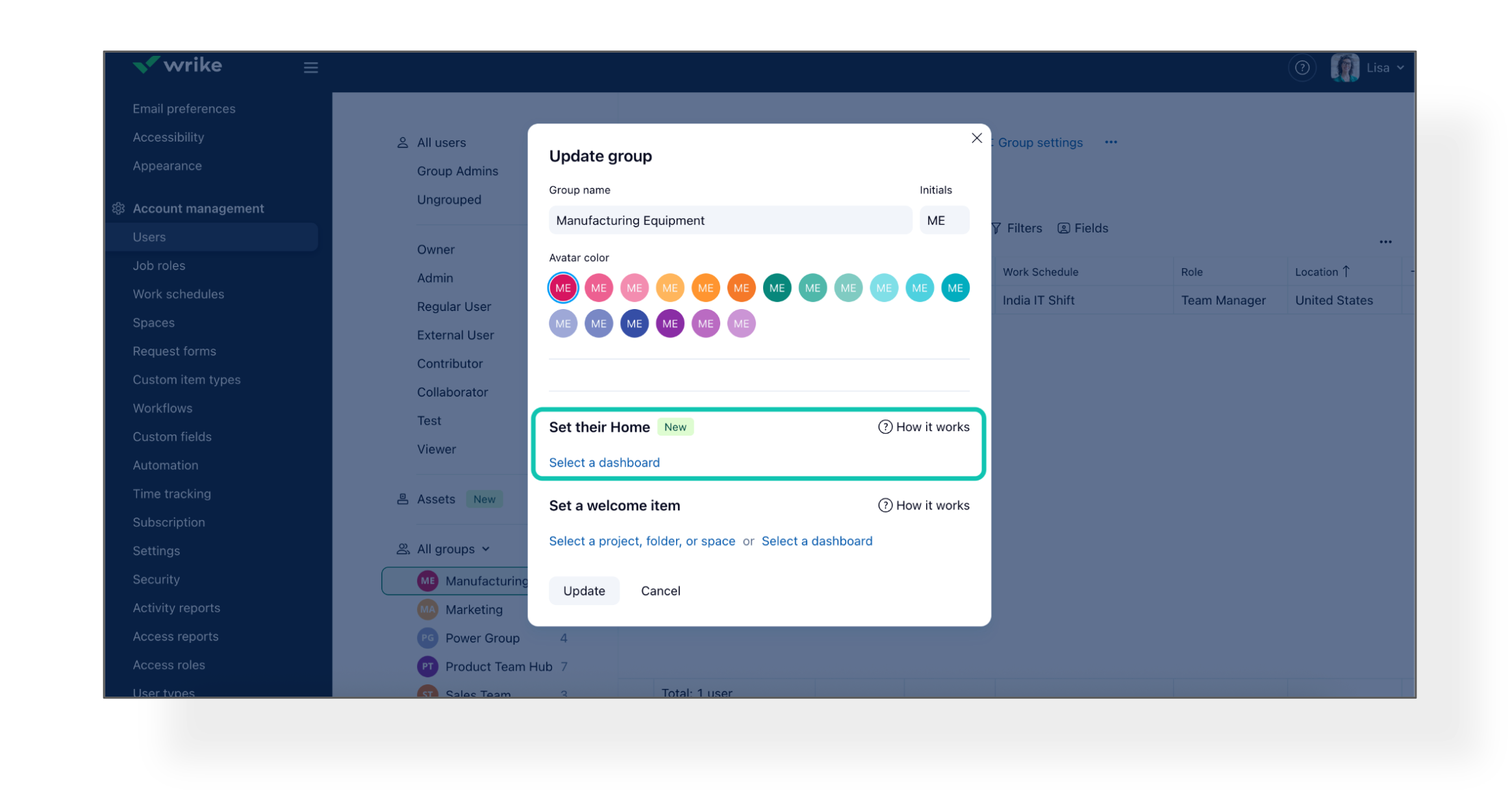
We’re excited to announce the release of the Set Home for User Groups feature! Admins can now assign and configure a home
Dashboard at the user group level, making onboarding faster and easier for everyone!
How does it work?
- New group members (without a home page) automatically get the assigned home.
- Existing users in the group also receive the group home if they don’t already have one.
- Changing the group’s home updates it for all users who were using the previous group's home.
We’re excited to introduce an easier, faster way to set up your next project or team in Wrike—Custom
Space Templates are now available in
Wrike Labs!
How to Create and Use Custom Templates:
- Save a Space as a template via the three-dot menu in the Space header or by clicking + Custom template in the Templates Gallery.
- Give your template a name and description, then click Save - it will appear in the Gallery.
- To use, click Create new space, choose your custom template, and launch!
What’s included:
- Create Space Templates (up to 5 Spaces per template)
- All space-level configurations are copied into each new space created from a template
- User type permissions are enabled by default for owners and admins only, allowing them to:
-> Create and manage their own templates
-> Manage all templates in the account
- Dashboards: New Filters Now Generally Available! 🎛️
New Filters in Dashboards are now generally available to all users! Previously in
Wrike Labs, these advanced filtering options can now be used by everyone.
What’s new?
- Relative Date Filters (next 14 days, last 2 months)
- Enhanced status filtering lets you search for or select statuses across workflows
- Negative filtering, filter by name, files, parent filters, calculated custom fields, filter groups, AND/OR logic (all in table widgets)
📝 Please note:
- The try new filters button sets new filters as default, but you can switch back to classic filters anytime.
- Filters apply to both tasks and projects—use Item type to narrow your scope.
- Charts do not yet support all filters, and some fields can’t be auto-converted from classic to new filters.
- Both classic and new filters will coexist, so you can choose your preferred experience.
Find more details about available Dashboard filters
here.
- Dashboards: User and Capacity Metrics Improvements 🛠️
We’ve improved how user and capacity metrics work in
Dashboards!
What's New:
- The User count metric now shows all users, regardless of which folder is selected as a datasource. (You may need to add user filters to your widgets.)
- The Capacity metric now shows the capacity of all users, regardless of folder selection.
- The following metrics are now defined as formulas:
-> availableTimeHours = capacity - effort
-> plannedUtilisation = effort / capacity
-> actualUtilisation = 100 × time spent / capacity
-> availability = 100 − 100 × time spent / capacity
So, Pivot tables displaying effort, capacity, and planned utilisation will always show matching results.
Please note: Widgets using these metrics require user and date filters; without them, results may not be meaningful.
Community News
- Wrike-Up Wednesday: Skill You’d Love to Learn 🎨
This week, tell us about a skill or hobby you’d love to learn and why it excites you. Whether it’s painting, coding, cooking, or something totally unique—no dream is too big or too small!
Share yours here!