Hey Wrike Community! 🙋🏻♀️
We’re excited to introduce an easier, faster way to set up your next project or team in Wrike: Custom Templates!
Custom Templates let account owners and admins on Business, Enterprise, and Pinnacle plans save Spaces as templates. Now, whether you’re building out marketing campaigns, onboarding workflows, or product launches, you can create new Spaces with all your proven configurations in just a few clicks.
How to Create and Use Custom Templates 🔮
1. Saving Your Space as a Template
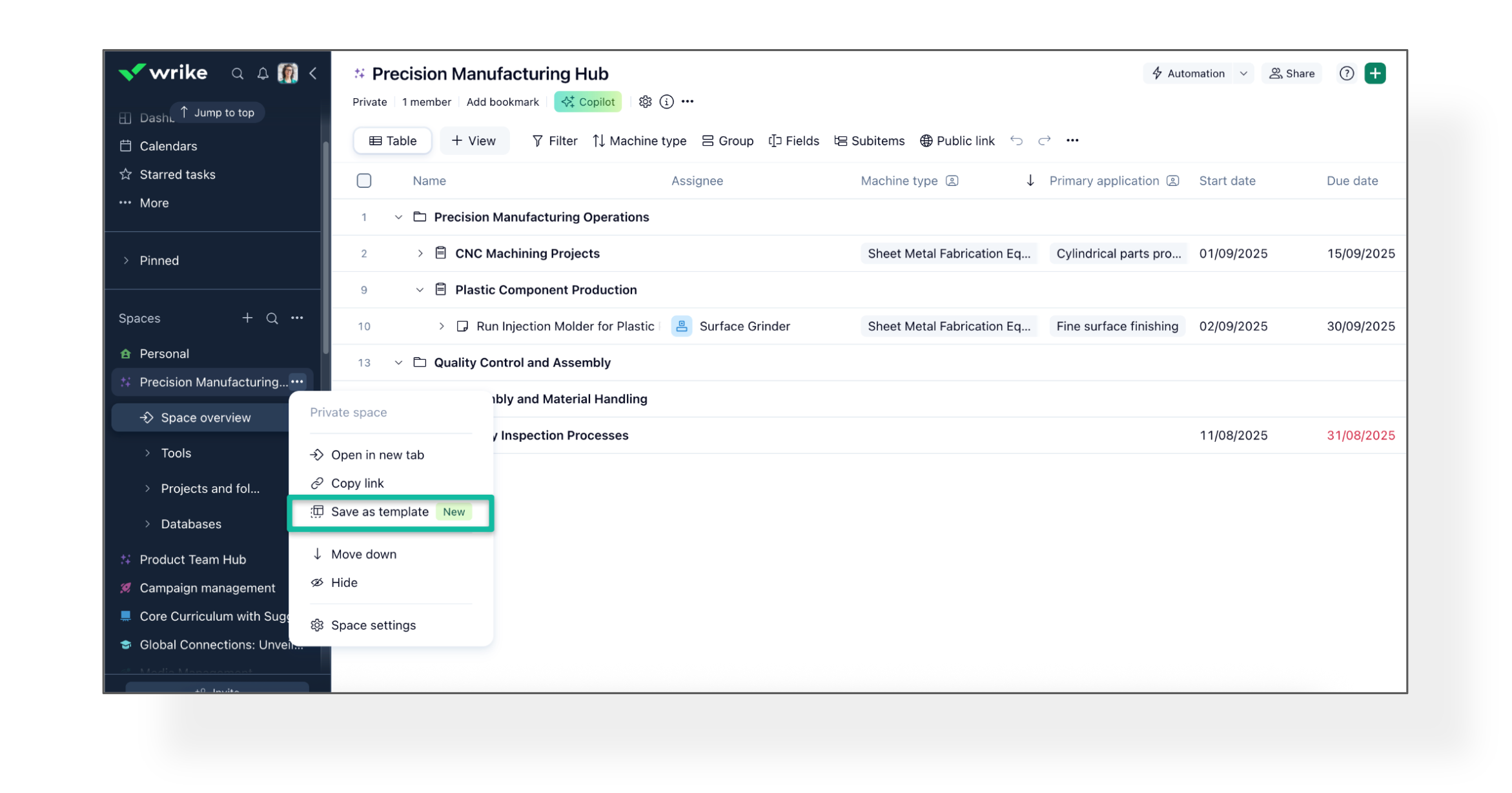
- Open the Space you want to save as a template (it must be unlocked and active).
- Click the three-dot menu in the Space header and select "Save as template."
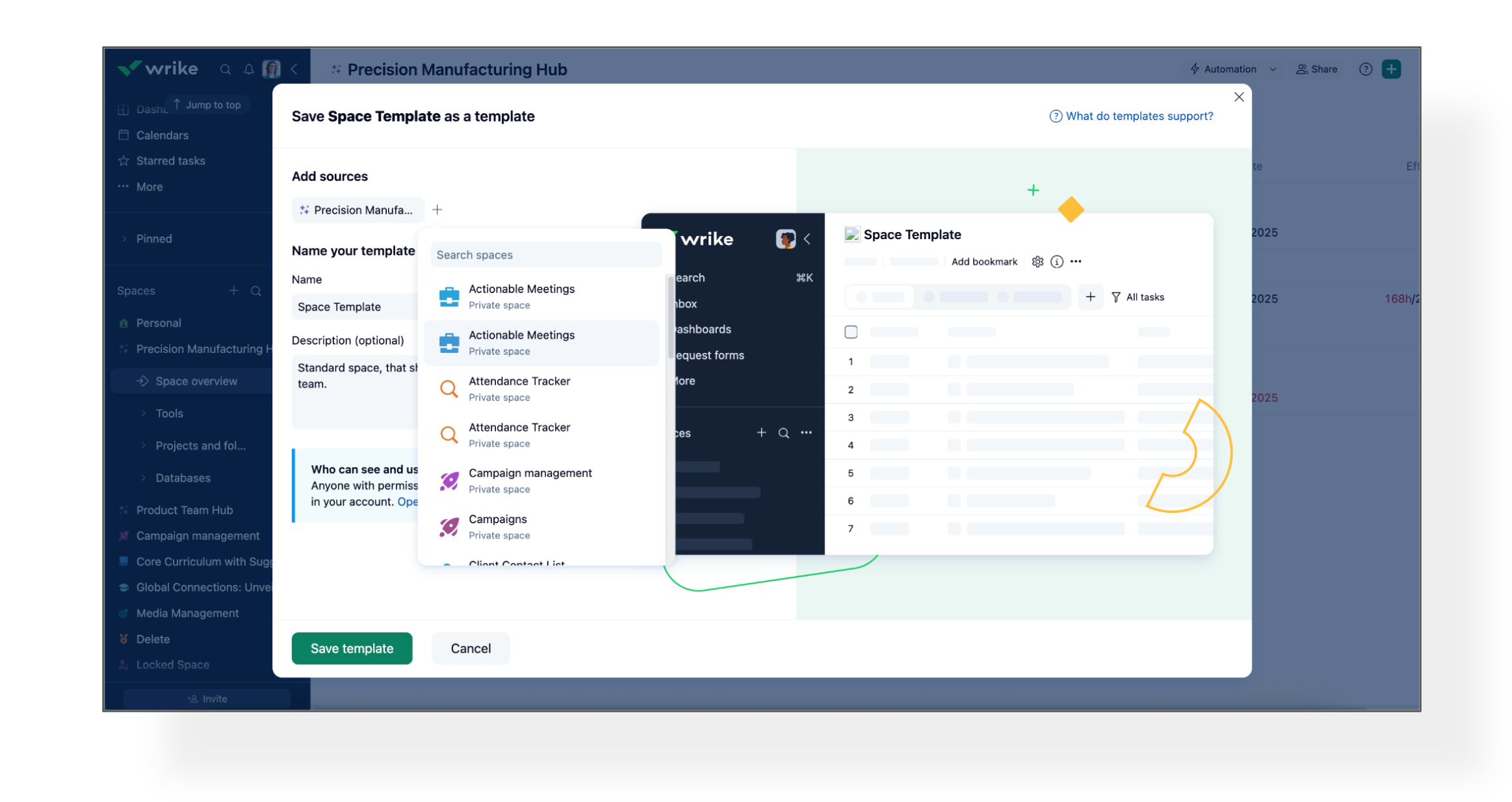
- Alternatively, you can go to the Templates Gallery, click "+ Custom template," and you can choose up to 5 Spaces.
- Give your template a name and description, then click Save.
- You’ll see a confirmation and your template will appear in the Gallery!
2. Launching a New Space from a Template
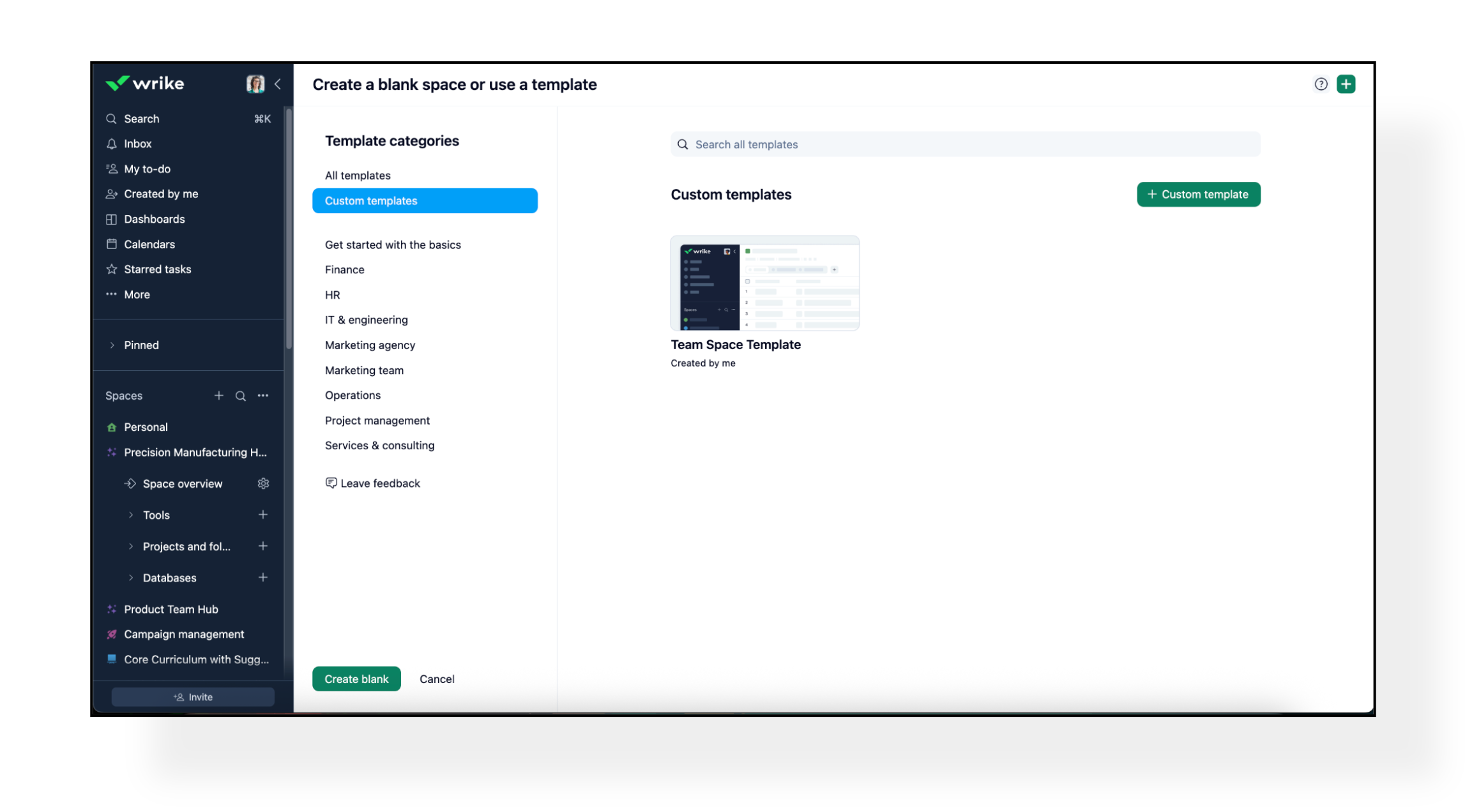
- Click “Create new space” and browse to the Custom templates category.
- Select your template, review details, and click to create!
- You can edit the name/description, and if you have permission, edit or delete templates you’ve created.
Here’s What Gets Saved! 📥
Wrike captures almost everything you need to rebuild a workspace:
- Configurations:
- Content:
📝 Please Note: Assignees are not copied when you create a template, so your new Spaces start with a clean slate!
How It Works 👥
- For Account Owners and Admins:
You can save any space (except locked, personal, or archived spaces) as a template, if you are a Space administrator. Templates are stored in your account’s Templates Gallery and can include up to 5 spaces at once. When saving, if a template with the same name already exists, Wrike will automatically add a number to the new template’s name.
- For Regular Users:
Owners and admins can allow regular users to create templates by enabling the appropriate permission in the User Type settings. Once this permission is granted and the feature is enabled for their account, regular users can create new templates. The template gallery displays all available custom templates, along with the names of their creators.
Please Note 📌
- Templates copy current Space-level settings. Any changes made to the original Space later won’t affect the template.
- For account-level settings, the template always re-uses an existing configuration and doesn't create copies.
- If your tasks, projects, or folders have links (cross-tags) to other spaces, they will be removed automatically from the Template. If you want to keep the cross-tags, you should include other spaces to the template, while saving it.
- Approvals, Databases, Workload Charts, and Job Roles aren’t supported yet.
- Locked, personal, or archived Spaces can’t be templated.
We’d love to hear how you’re planning to use Custom Templates, and any feedback you have - let us know below! 👇