TL;DR: A project in Wrike is a container that helps you organize, manage, and report on a group of related tasks working toward a larger goal. It comes with its own status, start and end dates, owner, and progress tracking.
Hey Community! 👋
If you've just started exploring Wrike, chances are you've already come across the word "project" a few times. Let's make sure it clicks.
What exactly is a project?
A project in Wrike is one of the main building blocks for organizing your work. Think of it as a container that groups together all the tasks, files, and conversations related to a specific goal or initiative.
What makes a project different from a simple folder or task is that it has its own set of properties:
Property | What it does |
|---|
Status | Track whether the project is New, In Progress, Completed, On Hold, or Cancelled |
Owner | Assign one or more people responsible for overseeing the project |
Start & end dates | Set a timeline for the project itself, separate from individual task dates |
Progress tracking | Automatically track how much of the project is complete based on tasks |
Custom fields | Add project-level data like budget, department, or priority |
Attachments & conversations | Keep important files and discussions at the project level |
When should you use a project?
Use a project when you need to:
- Track a key initiative where you want to monitor overall status and progress.
- Group related tasks that are all part of a bigger goal.
- Set start and end dates at the initiative level, not just on individual tasks.
- Report on progress using Wrike Reports for a high-level overview.
- Visualize work on a Gantt chart to see how related tasks connect over time.
- Automatically track progress across a group of tasks or subprojects.
How to Create a Project
You can create a Project in several ways:
- Click the + icon in the top-right corner of your workspace and select Project from the dropdown, or
- Click the + icon next to Projects and folders in the sidebar, or
- In Table view, click + Item at the bottom and select Project from the dropdown.

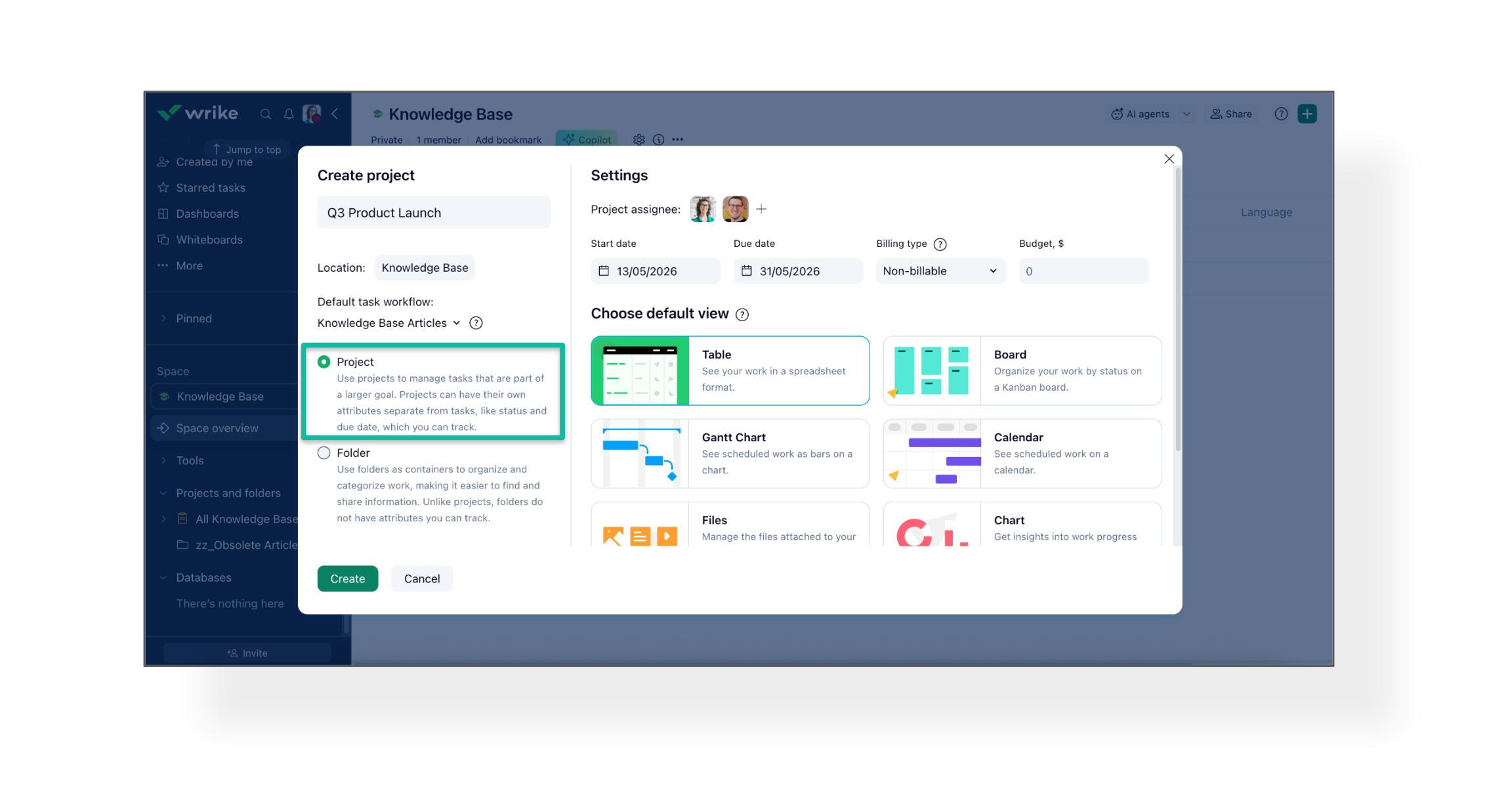
When the creation popup appears:
- Enter the projects's name.
- Choose the project's location (which Space, folder, or project it should live in).
- Select a default workflow for tasks created inside it.
- Make sure Project is selected as the item type.
- Choose a default view (Table, Board, etc.).
- Specify who to share the project with. By default, it's shared with users who have access to the parent location.
- Click Create.
A real-world example
Let's say you just joined a team that's planning a product launch. You open Wrike and see a project called "Q3 Product Launch" with tasks like "Write press release," "Design landing page," and "Set up email campaign."
Without asking anyone a single question, you can already tell:
✅ What needs to happen
👤 Who's doing what
🔄 What's done, what's in progress, and what's coming up
📅 When the whole thing is supposed to wrap up
That's what good project setup gives you, clarity from day one.

Project vs. folder vs. task: what's the difference?
This is a common question for new users. Here's a quick comparison:
| Folder | Project | Task |
|---|
Purpose | Organize and group items | Manage a goal-driven initiative | Track a single action item |
Has its own status? | No | Yes | Yes |
Has start/end dates? | No | Yes | Yes |
Has an owner? | No | Yes (owner) | Yes (assignee) |
Can contain tasks? | Yes | Yes | Only subtasks |
Can be reported on? | No | Yes (project reports) | Yes (task reports) |
Good to know
- Projects are available on all Wrike plans and all users can view them. However, Collaborators, Contributors, and Viewers cannot create or edit projects
- Projects can contain subprojects. If your initiative has distinct phases, you can nest projects inside each other to keep things organized.
- Projects and tasks have separate reporting. You can't combine both in a single report, so keep this in mind when deciding how to structure your work.
- Changes to a project are saved automatically. No need to hit a save button.
Learn more
For a deeper dive into how projects work and how to set them up, the Wrike Help Center has you covered:
📌 Related posts in this series:
Over to you
When you were starting out, did you ever struggle to decide whether something should be a project or just a folder with tasks? How did you figure out the right approach? Let's talk about it below! 💬